16 June, 2012

Phone call memo list sharepoint 2010

Guys,
My research is still in progress and this research is in continuation from this article: http://sharepointknowledgebase.blogspot.com/2012/06/group-work-lists-sharepoint-2010.html
As started earlier in the above mentioned article, Phone call memo list is a special list which gets enabled after activating the ‘Group work lists’ feature.
Microsoft SharePoint Product Team has really done a good job by introducing this new list i.e. Phone Call Memo list
Where and how we can use this list?
·         Knowledge base
·         Desktop Support
·         Office call handling by receptionist
·         Track down some important notes when you are doing some important work
·         Your colleague can also note down the note when you are busy in meetings
Purpose/Objectives can be anything but when you need to decide how you want to utilize this list for your project requirements.
What I like it very much? J
Phone call memo list consist of these views: My memos, My Unresolved memos, all unresolved memos, Memos from me. Memos can be anything, like calls, issues, notes, problems, incident tickets, incident numbers etc.
Apart from this, you can configure your new view, in which you can specialize your project requirements.
Important columns
Please refer the following screenshot that I would like to highlight by means of specialized marking.
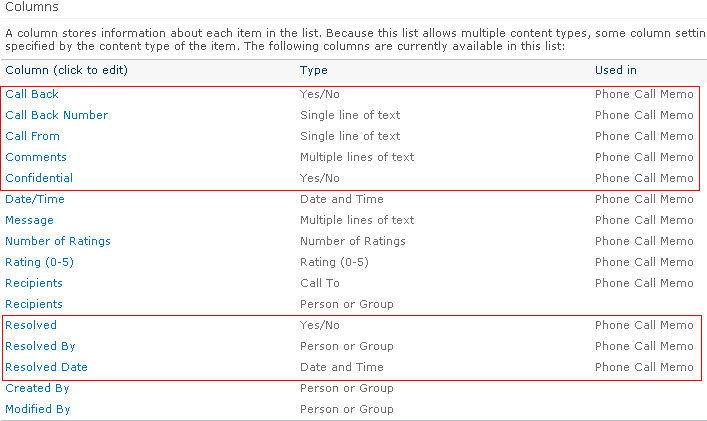
If you have any queries/questions regarding the mentioned information then please let me know. Thank you J

15 June, 2012

Group Work Lists SharePoint 2010 feature

Doing some research on this new feature i.e. Group wok list which is a new enhancement in SharePoint 2010 features.
Basics/background:
Let’s mesmerize some SharePoint 2007 basics then you will come to know that such functionality was present in room and equipment reservations application template (One of the template belongs to Fabulous 40 templates provided by Microsoft).
The Room and Equipment Reservations application template helps teams manage the utilization of shared meeting rooms and equipment. The application template enables team members to identify times when specific rooms and/or equipment are available and place a reservation for a specified time.
You will find this feature under site settings-manage site features i.e. http://SharePoint2007/sites/Yousitename/_layouts/managefeatures.aspx
How to enable this feature:
·         Open the SharePoint site
·         Site actions
·         Site settings
·         Site actins-manage site features
·         Group work lists (Provided calendars with added functionality for team and resource scheduling)
·         Activate
·         That’s it-Feature will be successfully activated without any issues
What kind of changes occurred after activating that feature?
Let’s make this point very clear, whenever you will activate any site collection/site feature then some changes happened and we should be able to identify those changes. You must be wondering as what exactly I am talking about and that’s also based on this feature.
Yes-you are absolutely right, as soon as I have activated that Group work lists feature then I checked the view all site content page (http://sitename/_layouts/viewlsts.aspx )
Addition of 3 new lists:
·         Phone call Memo
·         Resources
·         Whereabouts
How to make our default calendar to use this functionality?
·         Open the calendar list
·         Settings
·         List settings
·         Title, description and navigation
·         Make this option ‘Use this calendar for Resource Reservation’ to Yes
·         Click OK
Now we can specify resources while adding a new item to the calendar list.
Note: Make sure to add the number of resources by giving proper naming conventions as per your project requirements.
How to add the new resources:
·         Open the resources list (View all site contents-List Section)
·         Add new item
Example:  Conference room10, conference room20, conference room30, Video conference, audio conference etc.
Please refer the following example in which I have an event named as ‘MVP’s Meeting’ which is scheduled on 15th June 2012, time slot: 8 AM-9:30 AM and I have allocated a resource also i.e. Conference Room 30

If you have any queries/questions regarding the above mentioned information then please let me know. I would be more than happy to help you as well as resolves our issuesJ J
Thank you.

13 June, 2012

Missing Manage item scheduling in Document Library-SharePoint 2010

Guys,
If you refer the following link then you will come to know as what exactly needs to be done to enable the Manage item scheduling in document library.
Let’s assume, if you are not able to find this option under document library general settings then so many questions will be raised:
Like: Why the option is missing in this library? Is this restricted to specific site collection only? Is there any problem in SharePoint farm configuration? And so many more questions…
I have successfully reproduced the issue on my lab site and successfully able to resolved the issue without any issues J it took some time to find out the resolution but finally I have done it J Happy SharePoint once againJ
Resolution: it’s a 2 step resolution in which we need to activate some features from two different sections:
Step: 1
·         Open the site collection on which you are working
·         Site actions
·         Site settings
·         Site collection administration
·         Site collection features
·         Activate ‘SharePoint Server Publishing Infrastructure’
Step: 2
·         Open the sharepoint site
·         Site actions
·         Site settings
·         Site actions (Under the Look and Feel section)
·         Manage site features
·         Activate this ‘SharePoint Server Publishing’
That’s it-you are done. Check the document library now and you will be able to see that option.
If you have any queries/questions regarding the above mentioned information then please let me know.
I would be more than happy to help you as well as resolves your issues J
Thank you.

Item scheduling in SharePoint 2010


How to enable item scheduling in SharePoint 2010?
·         Open the document library
·         Settings
·         Document library settings
·         General settings section
·         Versioning settings
·         Make this option Yes-Require content approval for submitted items?
·         Document Version History 
·         Select the versioning options as per your requirements
Example: I am selecting “Create major and minor (draft) versions” to make it flexible
·         Click OK
Now, again go back to the “Manage item scheduling” and check the results J
You will be able to see that option now in ‘Enable’ mode. Happy SharePoint J
If you have any queries/questions regarding the above mentioned information then please let me know. Thank you J

11 June, 2012

Webpart basics in SharePoint 2010


A Web Part is a modular unit of information that forms the basic building block of a Web Part Page. You can add Web Parts to Web Part zones in a Web Part Page and then customize the individual Web Parts to create a unique page for your site users.
Restore closed web parts?
·         Open the sharepoint site
·         Site actions
·         Edit page
·         Click on Insert
·         Specify the location of the mouse cursor where you need to place that webpart
·         Click on webpart
·         It will open the web part gallery page
·         Scroll down towards the bottom by means of categories section
·         You will see a section named as “Closed webparts”
·         As soon as you click on closed webpart then you will see a list in the right hand side
·         Select the appropriate one which was closed and click on Add
·         That’s it-webpart will be successfully restored back to the page where it exists before. J
How to delete a webpart?
·         Open the page where the Web part is located.
·         Select Edit Page from the Site Actions drop-down menu.
·         Click the Web part to be deleted.
·         Click the Web Part Tools tab on the Ribbon.
·         Click the Delete Button, and then click Okay in the warning dialog.
How to add a webpart?
·         Open the sharepoint site
·         Site actions
·         Edit page
·         Click on Insert
·         Specify the location of the mouse cursor where you need to place that webpart
·         Click on webpart
·         It will open the web part gallery page
·         Select  the appropriate webpart from the categories list
·         Click on Add
·         That’s it-you are done J
How to export a webpart in SharePoint 2010?
·         Edit the webpart
·         Under Advanced Settings look for Export option
·         Change the option to Export All
·         Save the webpart configuration and you have the option back in place now
·         That’s it-you are done J
If you have any queries/questions then please let me know. I would be more than happy to help you as well as resolves your issues J
Thank you.

Activation could not be completed because the InfoPath Forms Services support feature is not present-SharePoint 2010

I was trying to publish the InfoPath form by using the browser enabled functionality but as soon as i clicked on published then I got the following error message:

Activation could not be completed because the InfoPath Forms Services support feature is not present. -OR-
There has been error while loading the form.

I worked on such similar issue in the past but that belongs to SharePoint 2007 version so I am pretty much sure that there should be some correlation with the same resolution.
You must be thinking as which resolution I am talking about. Don’t think and stress out, refer the following details:

Finally I dig into the 14-features folder on the servers and found out the exact feature i.e. IPFSSiteFeatures

I have resolved this issue without much headache/stress and resolution too is very simple:

Disable-SPFeature "IPFSSiteFeatures" -URL "http://yoursitecollectionURL"

Enable-SPFeature "IPFSSiteFeatures" -URL "http://yoursitecollectionURL"

If you have any queries/questions regarding the mentioned information then please let me know. I would be more than happy to help you as well as resolves your issues J

Thank you

08 June, 2012

SharePoint 2010: Backup/Restore with PowerShell Command

This article is in continuation with the backup operations thread and you can get the reference from here:
http://sharepointknowledgebase.blogspot.com/2012/06/backup-restore-in-sharepoint-2010.html

Restore Operations
Restore operations are associated with:
·         Site collection
·         Subsite
·         List and Document Libraries
Restore of the site collection
By using Powershell
Name: Restore-SPSite
Synopsis: Restores a site collection.
Syntax:  Restore-SPSite [-Identity] <String> -Path <String> [-AssignmentCollection <SPAssignmentCollection>] [-Confirm [<SwitchParameter>]] [-ContentDatabase <SPContentDatabasePipeBind>] [-Force <SwitchParameter>] [-GradualDelete <SwitchParameter>] [-HostHeaderWebApplication <String>] [-WhatIf [<SwitchParameter>]] [<C
    ommonParameters>]
Description: The Restore-SPSite cmdlet performs a restoration of the site collection to a location specified by the Identity parameter. A content database may only contain one copy of a site collection. If a site collection is backed up and restored to a different URL location within the same Web application, an additional content database must be available to hold the restored copy of the site collection.
Example:
C:\PS>Restore-SPSite http://server_name/sites/site_name -Path C:\Backup\site_name.bak
This example restores a site collection from the backup file C:\Backup\site_name.bak to the site collection URL http://server_name/sites/site_name.
By using STSADM command:
For site collection restore:
    stsadm.exe -o restore
           -URL <URL>
           -filename <filename>
           [-overwrite]

How to restore the subsite
By using Powershell
Name: Import-SPWeb
Synopsis: Imports a site collection, Web application, list, or library.
Syntax: Import-SPWeb [-Identity] <SPWebPipeBind> -Path <String> [-ActivateSolutions <SwitchParameter>] [-AssignmentCollection <SPAssignmentCollection>] [-Confirm [<SwitchParameter>]] [-Force <SwitchParameter>] [-HaltOnError <SwitchParameter>] [-HaltOnWarning <SwitchParameter>] [-IncludeUserCustomAction <None | All>] [-IncludeUserSecurity <SwitchParameter>] [-NoFileCompression <SwitchParameter>] [-NoLogFile <SwitchParameter>] [-UpdateVersions <Append | Overwrite | Ignore>] [-WhatIf [<SwitchParameter>]] [<CommonParameters>]
Description: The Import-SPWeb cmdlet imports a site collection, Web application, list, or library. The capability to import from a library is a new feature in SharePoint 2010 Products.
Example: C:\PS>Import-SPWeb http://site -Path export.cmp -UpdateVersions –Overwrite
This example imports the contents of export.cmp into a site at http://site, overwriting the versioned content on the site with the contents of the export.cmp file.
By using STSADM command:
stsadm.exe -o import
           -URL <URL to import to>
           -filename <import file name>
           [-includeusersecurity]

How to Restore the List/Document Libraries
By using Powershell
Export-SPWeb –Identity <site URL> -Path <Filename> -Includeusersecurity
If you have any queries/questions regarding the above mentioned information then please let me know. I would be more than happy to help you as well as resolves your issuesJ J
Thank you.

Method 'Post' of object 'IOWSPostData' failed SharePoint 2010

Guys, before I start writing on this error message, let me clarify that I have tested this issue in two environments:
·         SharePoint 2010 and Office 2007
·         SharePoint 2010 and Office 2010
Directly Jumping on to the troubleshooting steps, let me brief some details as how I reproduced that error message:
·         Open your SharePoint site
·         View all site content / http://SharePoint2010/sites/SPAdmin/_layouts/create.aspx  
·         Custom list section
·         Import a spreadsheet (refer the following screenshot)
·         Provide appropriate details for the Name field
·         Select an excel spreadsheet that you wants to import by means of Browse option
·         Range of cells
·         As soon as you selects the range of cells and click Ok then you will get the below mentioned error message:
Method 'Post' of object 'IOWSPostData' failed
First condition: SharePoint 2010 and Office 2007
If you are using the above combination then it’s never going to work.
Second condition: SharePoint 2010 and Office 2010
Its working perfectly without any problems, if you are facing the mentioned error message for this combination then here is the resolution for this:
·         Go to “C:\Program Files\Microsoft Office\Office14\1033”.
·         Find “EXPTOOWS.XLA” and double click on it.
·         Press “Alt+F11” to display VB code editor.
·         Select code window and find “lVer = Application.SharePointVersion(URL)”
·         Add following line “lVer = 2”.
·         Save and close the window.
·         Restart and see if it worked.
·         If not, change “lVer = 3”.
·         Restart and see if it worked.
If you have any queries/questions regarding the above mentioned information then please let me know, Thank you.

how to import a spreadsheet into sharepoint list 2010

Just like SharePoint 2007, SharePoint 2010 also provides this functionality in which we can directly import an excel spreadsheet and creates a custom list based on the number of the columns.
How to import? Here is the step by step guide for you:

·         Open your sharepoint site
·         Click on view all site content
·         Create
·         Select the List category from the left
Note: If you do not wants to follow the above mentioned steps then please make some adjustments in your site URL (like the below one)
You will be wondering as what exactly we need to do in the URL, it’s very easy
Just append _layouts/create.aspx after the site name. That’s it
·         Okay, continuing the same point


·         As soon as you click on ‘Import a spreadsheet’ then Provide the list name as per your project requirements
·         Click on Browse and select your excel file that you wants to import
·         Select the range of cells that you want to import
·         Click OK
-That’s it-Job Done J Very Easy Right J-
If you face any queries/questions regarding the above mentioned information then please let me know. I would be more than happy to help you as well as resolves your issues. Thank you.