09 April, 2012

No text converter is installed for this file type’ PowerPoint error


A PowerPoint file may become corrupt owing to a variety of reasons including corrupt operating system, application malfunction, virus infections, and human errors and so on. A corruption scenario is a great cause of worry for anyone who has invested his precious time and indulged in intensive research to create a presentation. You can sail through the above unfortunate situation if you backup your data regularly. However, if you haven’t maintained any backup, there is no need to press the panic button. There are many things you can consider doing to recover PowerPoint file than mulling over going through the grind again.

As a practical case, you may come across the following error while trying to view a ppt file sent via an e-mail:
“No text converter is installed for this file type”

As a result of the above error, you will not be able to access the data stored in the PowerPoint file.

Cause:
you can receive the above error in the following circumstances:
If you are trying to open a PowerPoint 2007 file in an earlier version of PowerPoint
If you are trying to open a corrupt PowerPoint file (A PowerPoint file received via email has the tendency to get corrupt. It is a good practice to zip the file before sending it as an attachment.)

Resolution:
Below mentioned workarounds can be observed in order to fix the error and access the data from a ppt file:
You can install the compatibility pack which will let you open PowerPoint 2007 file 

To extract the data from a corrupt ppt file, you can observe the following PowerPoint recovery steps:
1.You can click Slides from Files on the Insert menu
2.You can try and recover text by opening a corrupt presentation in Word 
3.Try and access the file on a different hard drive or a computer
4.Open PowerPoint in safe mode and then try to open a corrupt file
5.To recover ppt file if all the above methods fail, you have to rely on a third-party utility

You can download such a tool from the Internet. Ensure you select a read-only application which doesn’t modify the original content.

07 April, 2012

An unexpected error has occurred

When a user tries to add a file to the My Content page, he might encounter this error message. This error can occur when the User Profile service is stopped.

To resolve this error, in Central Administration, do the following:
  1. Click Application Management
  2. In the Service Applications section
  3. Click Manage services on server.
  4. On the Services on Server page
  5. In the User Profile Service row
  6. Click Start.
In case of any queries/information required then please let me know.
I would be more than happy to help you as well as resolves your issues J

Outlook Integration Error

Outlook Integration Error

Recently i came across the integration issue, On Office communicator 2007 R2 you will see the Outlook Integration error. There are plenty of reasons of outlook integration error.

I already covered few reasons in my earlier articles.

Here is one of the reasons.
If you expand the error message, you will see the below message-

“There was a problem connecting to Microsoft Office Outlook. Your Outlook profile is not configured correctly. Contact your system administrator with this information"

Resolution:-

Note: Outlook Integration error is found on computer where Office 2007 and Exchange Systems Tools installed.
Communicator 2007 is required latest updated mapi version.

Steps:-
  1. Start > Run> type c:\Windows or Winnt\System32 and click on OK.
  2. On System32 page, locate the MAPI32.DLL file.
  3. Right click and select properties, Click on Versions.
  4. You will see MAPI32.DLL version like 6.5.76.... Etc
  5. Restart computer and press F8 key to start machine in safe mode.
  6. Start > Run> type c:\Windows or Winnt\System32 and click on OK.
  7. Locate MAPI32.DLL and rename it.
  8. Copying over the communicator 2007 version of mapi32.dll (ver 1.0.253..) from a working computer.
Thank you!

05 April, 2012

There has been an error creating the personal site-SharePoint 2010

When an end user tries to create an individual site collection on their personal My Site page by clicking the My Content link for the first time, he or she might encounter this error message.

Resolution Steps:
To resolve this error, in Central Administration, do the following:
1.       Click Application Management.
2.       In the Service Applications section, click Manage service applications.
3.       On the Manage Service Applications page, click the User Profile service application that is associated with the Web application that hosts My Sites, and then, in the Operations section of the ribbon, click Manage.
4.       On the Manage Profile Service page, in the My Site Settings section, click Setup My Sites.
5.       On the Manage Profile Service page, in the Personal Site Location section, verify that the value in the Location box is a wildcard inclusion managed path defined on the Web application that hosts My Sites. If not, create a new wildcard inclusion managed path for the Web application, and then use it as the value in the Location box.

In case of any further queries/questions then please let me know. I would be more than happy to help you as well as resolves your issuesJ.

What is the Business Data Catalog (BDC)?


The Business Data Catalog (BDC) is a new innovative framework created by the Office team to provide MOSS sites with integration into line-of-business (LOB) systems such as those created by SAP, Seibel, and PeopleSoft. The BDC additionally provides the means to integrate data directly from database systems such as SQL Server and Oracle. The BDC is included with the Enterprise Edition of MOSS.


While SharePoint Portal Server 2003 (SPS) has made it possible to integrate portal sites with LOB systems, it has required you to write custom code to manage connections and retrieve the data you need to display. Furthermore, the code required changes significantly as you switch between back-end systems from vendors such as SAP and PeopleSoft. The BDC, on the other hand, has been designed to enable you to integrate data from LOB systems without requiring you to write custom code for managing connections and retrieving data.
The design of the BDC is based on metadata that describes the location and format of data within LOB systems in terms of entities and methods. The BDC also provides a standardized method execution engine capable of reading this metadata and retrieving read-only data from LOB systems which is then returned to MOSS in a standard format.
The connectivity between the BDC and traditional LOB systems is achieved using standard Web services. The metadata required defines BDC methods for executing Web service operations. The connectivity between the BDC and database systems is achieved using ADO.NET providers. In this case, the metadata required defines BDC methods for executing SQL statements and/or stored procedures.


The first step in using the BDC is to author an XML file containing the metadata to connect to a back-end system. When you author metadata for the BDC, you define the data you want to retrieve in terms of entities. For example, you might define a customer as one entity and an invoice as another entity. The BDC metadata format also lets you define associations between entities in scenarios when there is a one-to-many relationship such as one that might exist between customers and invoices.


The definition of a BDC entity contains identifiers, properties, and methods. The methods define how the BDC interacts with entry points exposed by the back-end system. For a back-end system accessible through Web services, methods define the names of the Web service operations and the parameters required to call them. For a back-end system that is a database such as SQL Server or Oracle, methods define the names of stored procedure and SQL statements.


Entities can also define actions. A BDC action is used to dynamically parse together the URL behind a hyperlink that allows a user to navigate from a page in an Office SharePoint Server 2007 portal site to another location. For example, an action defined on a BDC customer entity could be written to redirect users to a Web page in an SAP application that supports updates to customer information. Actions were designed to support scenarios where the BDC is used to display read-only data and to bootstrap the user into another application when updating or some other type of external operation is required.


Once you have authored or acquired the XML file with the required BDC metadata for a back-end system, you must import it into the BDC within the scope of a particular SSP to create what is known as a BDC application. You can accomplish this importing process using the SSP administrative Web pages. You can alternatively import an XML file with BDC metadata using custom code written against the BDC administrative object model.


Once you have imported the required metadata to create a BDC application, there are several out-of-the-box techniques to leverage and display its data within a portal site. Office SharePoint Server 2007 ships with a set of Business Web Parts that can be quickly added to pages to query and display BDC data. You can also add new columns to lists and document libraries based on an entity defined in a BDC application. A user editing a column based on a BDC entity is automatically presented with a user interface making it possible to query the back-end system.


The BDC has been designed to integrate with the Office SharePoint Server 2007 Search Service. For example, a back-end system and its entities can be defined as a content source so that the Office SharePoint Server 2007 indexing service will crawl through its data and build indexes for the Office SharePoint Server 2007 search engine. This becomes a powerful feature because it allows users to discover data from back-end systems about things like customers and invoices when running standard search queries through both Office SharePoint Server 2007 portal sites and standard Windows SharePoint Services 3.0 sites.


The BDC provides convenient features to map data from a BDC entity to properties in a user profile and to synchronize this data at periodic intervals. For example, if your company has an SAP system that contains employee data you like to include in user profiles, such as phone numbers or social security numbers, you can configure this type of data importing without writing any custom code.


Finally, BDC entities can also be accessed programmatically using custom code written against the BDC object model. This makes it possible to write custom Web Parts as well as other server-side components and services that run their own BDC queries. One nice aspect of writing code to query BDC entities is that you don’t have to worry about managing connections or whether you are accessing the back-end system through Web services or ADO.NET. All those details are abstracted away by BDC metadata and the BDC execution engine.

Business Data Catalog

   The BDC is essentially a catalog of business applications that are of interest to SharePoint Server 2007 users, and it bridges the gap between the portal and business applications by bringing in key data from various applications to SharePoint sites, lists, search, and user profiles. The BDC is the key infrastructural component around which most of the other business data features of SharePoint Server 2007 are built. Administrators can register business applications in the BDC, after which the data in the application is immediately available to SharePoint through the business data features described below. A key requirement for each registered business application is an XML-based metadata model that describes the application programming interfaces (API) of the application or the schema of the database that maps to business objects (e.g. customer) and properties (e.g. name) that a SharePoint user can understand. These metadata models can be easily created by DBAs or database developers.

SharePoint Server 2007 ships with four out-of-the-box Business Data Web Parts: Business Data List, Business Data Items, Business Data Related List, and Business Data Actions. These Web Parts rely on the Business Data Catalog, and their main purpose is to display business data in a portal application without the need for any programming. Moreover, these Web Parts are generic and can show any type of data (entity) registered in the Business Data Catalog.
These Web Parts support Web Part Connections, which enable Master-Detail types of data display – again, without any programming. For example, you can display customers and their details using the BusinessDataList and BusinessDataItems Web Parts.

Web Part
Description
Business Data List
Web Part
Displays a list of entity instances from a business application registered in the Business Data Catalog. For example, you can use a Business Data List Web Part to display all the customers or orders from the AdventureWorksDW database.
Business Data Items
Web Part
Displays the details of an entity instance from a business application. For example, you can use a Business Data Items Web Part to display the details of a particular customer or order from the AdventureWorksDW database.
Business Data Related List
Web Part
Displays a list of related entity instances from a business application. For example, you can use a Business Data Related List Web Part to display all the orders for a particular customer from the AdventureWorksDW database.
Business Data Actions
Web Part
Displays a list of actions associated with an entity as defined in the Business Data Catalog. For example, you can use a Business Data Actions Web Part to display all the actions that portal users can perform on the Customer entity. Some examples of these actions are to send e-mail to a customer or edit the address of a customer.


Business Data in Lists
Windows SharePoint Services V3 provides custom field types. SharePoint Server 2007 leverages this feature to provide a new field type called Business Data that is available to all lists in SharePoint Server 2007. The Business Data field type enables users to add data from business applications registered in the Business Data Catalog to any SharePoint list. For example, in your RFP (Request for Proposal) Document Library, you can add a Business Data column to the document properties that specifies the customer who issued the RFP. This enables users to view the customer’s details and perform actions associated with them from within the Document Library.

Business Data Actions
You can define actions for each entity in the Business Data Catalog. Some examples of actions for a customer entity are to send e-mail to a customer or to edit the address of a customer. Business Data Catalog implements actions as links that allow you to navigate to a URL directly from the page where the entity or Business Data column is displayed. For example, these links can open Web pages, display the native graphical user interfaces (GUI) of line-of-business applications, and launch Microsoft® Office InfoPath® forms.

Business Application Search
By leveraging the Business Data Catalog, the Search Center feature of SharePoint Server 2007 can gather and index data from all of the registered business applications and provide full-text searching. For example, after you register the AdventureWorksDW sample database from SQL Server 2005 in the Business Data Catalog, the Search Center feature can crawl the database and return customer data in search results. In addition, the Search Center feature’s extensibility enables you to create customized search experiences. For example, you can create a Customers tab in the Search Center where users can search strictly for customers in the AdventureWorksDW database.

04 April, 2012

Error: No phone system connection: Cannot connect to the phone system.

Hello,

Recently i have faced Remote Click to Call (RCC) issue and on client gets the phone integration error. On client machine: No phone system connection error appeared.
Already verified clients account and it was enabled for RCC with proper Server URI and Line URI. Did some test – Tried login with different client on it is working and phone integration is also working.
With first client getting same error i.e. No phone system connection error.
After doing some test and changes, finally I found Registry key which are relevant to Telephony settings.
You need to add following key on Client machine:


  1. Click on Start > click on Run, > type Regedit, and then click OK.  
  2. Go to following registry path:
  3. HKEY_LOCAL_MACHINE\Software\Policies\Microsoft\Communicator Right click on blank space and point to New, and then click on DWORD Value.
  4. Value should be: TelephonyMode .
  5. Right click on TelephonyMode key, and then click Modify.
  6. Click on Decimal radio button under Base.
  7. In Value data box, type 4, and then click OK.
  8. Quit Registry Editor.
  9. Restart Office communicator,
  10. Enable Phone integration.
  11. Test the RCC call.

 Please leave comment, if this article helps you!

 Thank you!

29 March, 2012

Incompatible Security Setting’ error occurred in Office communicator while calling.

Incompatible Security Setting’ error occurred in Office communicator while calling.
 I came across ‘Incompatible Security Setting’ issue; there are many people which are affected regarding this issue.

Already verified configuration the VoIP security setting in the properties of the Unified Messaging Dial Plan to use ‘Secured’. It is set as Secured.

After checking all configuration, look over the Registry and found the "PC2PCAVEncryption" key is missing from users computer.

After adding above key rebooted computer and calling worked fine

Here are the steps to verify Registry and if any key missing then add the same:

1. Click on Start > RUN> type ‘regedit’ and say OK.

2. Expand and verify the following registry entries -


[HKEY_LOCAL_MACHINE\SOFTWARE\Policies\Microsoft\Communicator]

"MaxAudioVideoBitrate"=dword:0003e800

"PC2PCAVEncryption"=dword:00000000

"DisablePC2PCAudio"=dword:00000000

"DisablePC2PCVideo"=dword:00000000


Thank you!

28 March, 2012

What are the Software prerequisites for Lync Server 2010?

What are the Software prerequisites for Lync Server 2010?


I have tried installation of Lync Server on lab and faced numerous error messages.
Unfortunately, Lync Server 2010 generates the few generic error messages. The error itself states the problem, but it does not mention which modules are not installed. The simply states that all are needed.
Like: The cmdlet completed with errors.
 

There are number of software prerequisites must be met before begin the installation.

  
Active Directory Prerequisite- 
  • Update Active Directory to support Lync Server.
  • Active Directory topologies are supported are:
  • Single forest with single domain
  • Single forest with a single tree and multiple domains
  • Single forest with multiple trees and disjoint namespaces
  • Multiple forests in a central forest topology
  • Multiple forests in a resource forest topology
  • The Active Directory forest must be Windows Server 2003 Native Mode or higher, and all the domains in which Lync Server 2010 will be deployed must also be Windows Server 2003 Native Mode or higher.

The domain controllers must be Windows Server 2003 (32-bit or 64-bit) or higher,
 
The Schema, Forest, and Domain preparation must be performed from a 64-bit machine.

Lync Server 2010 is supported on the following Windows Server versions:
  • Windows Server 2008 Standard (with SP2)
  • Windows Server 2008 Enterprise (with SP2)
  • Windows Server 2008 Datacenter (with SP2)
  • Windows Server 2008 R2 Standard
  • Windows Server 2008 R2 Enterprise
  • Windows Server 2008 R2 Datacenter

The SQL Server version, of which the Following are supported (only 64-bit versions are supported):-
  • SQL Server 2005 Standard (with SP3)
  • SQL Server 2005 Enterprise (with SP3)
  • SQL Server 2008 Standard (with SP1)
  • SQL Server 2008 Enterprise (with SP1)
  • SQL Server 2008 R2 Standard
  • SQL Server 2008 R2 Enterprise
  • SQL Server Express (for Lync Server 2010 Standard Edition and the local server databases).

 Required components-

There are number of additional components are required:
  •  Windows PowerShell 2.0
  • .NET Framework 3.5 with SP1
  •  Windows Installer Version 4.5
Individual roles have different additional component requirements based on their configuration:

Front-End Servers and Directors require IIS modules installed:
  • Static content
  • Default document
  • HTTP errors
  • ASP.NET
  • .NET extensibility
  • Internet Server API (ISAPI) extensions
  • ISAPI filters
  • HTTP logging
  • Logging tools
  • Tracing
  • Windows authentication
  • Request filtering
  • Static content compression
  • IIS management console
  • IIS management scripts and tools
  • Anonymous authentication
  • Client certificate mapping authentication

If you attempt an installation without any of these, we will see generic error messages.
Thank you!

25 March, 2012

Useful power shell command

Hello Friends,


While performing Administrative duty, We require to enable, disable, Lync user list, Specific OU user list etc task multiple time. GUI mode is not good option. Instead GUI you can use CMDLETS,


Here are the lists of cmdlet which are getting use daily basis.

The difference between Get-CsUser and Get-CsAdUser:


Both cmdlets return information about Lync users. Use Get-CsUser unless you require access to the generic AD attributes, or if the user has not been enabled for Lync Server
Show all the properties returned by Get-CsUser:

Get-CsUser
Get-Member

Show the number of Lync enabled users:

@(Get-CsUser).Count

Get all AD users who are not, and who have never been, enabled for Lync or OCS:

Get-CsAdUser -Filter {Enabled -eq $null}
Format-Table -Wrap

Get users who are disabled for Lync or OCS:

Get-CsAdUser -Filter {Enabled -eq $False}

Get all users who have been enabled for Lync or OCS but are not currently assigned to a registrar pool.

Get-CsUser -UnassignedUser

Get all Lync Users in the 'Sales' Department (You may change sales name with any other name):

Get-CsUser -LDAPFilter 'Department=Sales'


Thank you!

22 March, 2012

How to search user in Lync server 2010 control panel?

How to search user in Lync server 2010 control panel?

You can search for users by using the Lync Server Control Panel or the Active Directory Users and Computers snap-in.

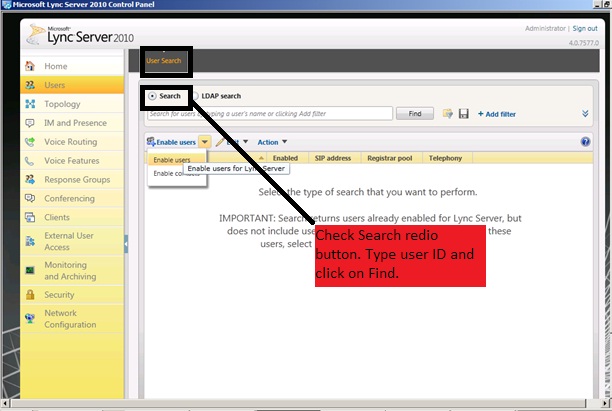
To search for one or more users via Lync server control panel-

1.   From a user account that is assigned to the CsUserAdministrator role or the CsAdministrator role, log on to any computer in your internal deployment.

2.   Open a browser window, and then enter the Admin URL to open the Lync Server Control Panel. For details about the different methods you can use to start Lync Server Control Panel.

3.   In the left navigation bar, click Users.

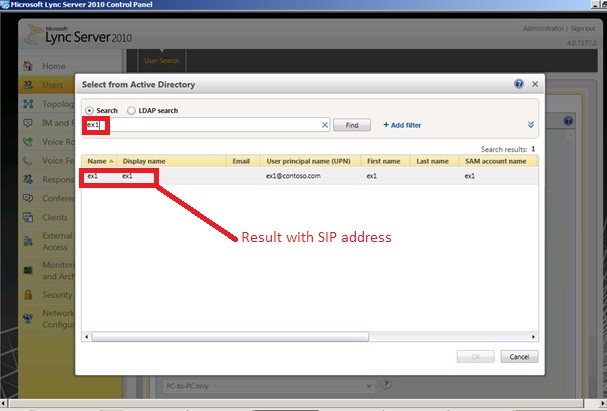
4.   In the Search users box, type all or the first portion of the display name, first name, last name, SAM account name, SIP address, or line URI of the user account that you want to search for, and then click Find.

5.   (Optional) Specify additional search criteria to narrow the results:

     a. Click the expand arrow button in the upper-right corner of the screen above Search  results, and then click Add Filter.

    b. Enter the user property by typing it or clicking the arrow in the drop-down list to select a user property.

   c. In the Equal to list, click Equal to or Not equal to.

   d. In the text box, type the search criteria you want to use to filter search results, and then click Find.

Microsoft Lync Server 2010 Software and Hardware requirement.

Microsoft Lync Server 2010 Software and Hardware requirement.

Hardware Requirement:-

•  Lync Server 2010 is available only in 64-bit., which requires 64-bit hardware and 64-bit editions of Windows Server.
•  Lync Server 2010 is not available in a 32-bit version.
•  Lync Server 2010 required multiple processor groups (dynamic hardware partitioning)


Software Requirement:-Operating Systems for Server Roles

Microsoft Lync Server 2010 supports the 64-bit editions of the following operating systems:
•  The Windows Server 2008 R2 Standard operating system (required) or latest service pack (recommended)
•  The Windows Server 2008 R2 Enterprise operating system (required) or latest service pack (recommended)
•  The Windows Server 2008 R2 Datacenter operating system (required) or latest service pack (recommended)
•  The Windows Server 2008 Standard operating system with Service Pack 2 (SP2) (required) or latest service pack (recommended)
•  The Windows Server 2008 Enterprise operating system with SP2 (required) or latest service pack (recommended)
•  The Windows Server 2008 Datacenter operating system with SP2 (required) or latest service pack (recommended).
•  To deploy Lync Server 2010 on a computer that is running either the Windows Server 2008 R2 Datacenter operating system or the Windows Server 2008 Datacenter   operating system with Service Pack 2 (SP2)


Lync Server 2010 is not supported on the following operating systems:

•  The Server Core installation option of Windows Server 2008 R2 or Windows Server 2008
•  The Windows Web Server 2008 R2 operating system or the Windows Web Server 2008 operating system
•  Windows Server 2008 R2 HPC Edition or Windows Server 2008 HPC Edition


Backend server (SQL) requirement:-•  Microsoft SQL Server 2008 Express database software, which is installed by default when you install Lync Server 2010, to Microsoft SQL Server 2008 R2 Express.
•  The SQL instance name is RTC for a Standard Edition server back-end database and RTCLocal for the local configuration store (on each server role).
•  A server running Lync Server 2010 Standard Edition has both SQL instances, and each needs to be upgraded separately.

20 March, 2012

Event id: 7034

An event is any significant occurrence in the system or in a program that requires users to be notified, or an entry added to a log. The Event Log Service records application, security, and system events in Event Viewer. With the event logs in Event Viewer, you can obtain information about your hardware, software, and system components, and monitor security events on a local or remote computer. Event logs can help you identify and diagnose the source of current system problems, or help you predict potential system problems.

Today I am trying to collect the information based on Event id: 7034 so that it would be useful for the people to get the information at one place.

1.       Alert Name: User Code Host service fails to start
Source: Service Control Manager
Event ID: 7034
Level: Error
Article: Microsoft KB:

Resolution Mentioned:
Set the data value of ProcessNameFormat in HKEY_LOCAL_MACHINE\SYSTEM\CurrentControlSet\Services\PerfProc\Performance to 1

2.      Alert Name: Service instance provisioning failed
Summary: An attempt to start or stop a service instance failed on a server in your farm because the service instance provisioning failed.
Resolution: Start the service (Please refer the following for detailed documentation)

3.      Alert Name: Service Stop Operations
Applies To: Windows Server 2008
Description: Service Control Manager (SCM) stops services and driver services. It also reports when services terminate unexpectedly or fail to restart after it takes corrective action.
Message: The %1 service terminated unexpectedly. It has done this %2 time(s).

4.      Alert Name: The Windows Firewall has detected an application listening for incoming traffic.
Event Type: Failure Audit
Event Source: Security
Event Category: Detailed Tracking

5.      Log name: Application
Source: SharePoint Foundation
Task Category: Web controls
user: domain name\usernaccount name
Description: Load control template file file/_controltemplate/taxonomypicket.ascx failed

19 March, 2012

Event ID 8214: “Object reference not set to an instance of an object”

Problem Description
-You are trying to Check-Out documents from the document library where document check-out is required from the SharePoint site on your SharePoint farm, you are getting following error message
“Object reference not set to an instance of an object”
–You are unable to open and edit any office documents
–You are not facing the issue on the document library where check-out is not required to edit the documents
–Issue started to occur when you installed WSS 3.0 SP2 on you SharePoint server

Under Event Viewer–Application you are getting event ID 8214
Event Type:        Error
Event Source:    Windows SharePoint Services 3
Event Category: Topology
Event ID:              8214
Date:                     3/20/2012
Time:                     4:25:15 AM
User:                     N/A
Computer:          nasdac
Description:
The description for Event ID (8214) in Source (Windows SharePoint Services 3) cannot be found. The local computer may not have the necessary registry information or message DLL files to display messages from a remote computer. You may be able to use the /AUXSOURCE= flag to retrieve this description; see Help and Support for details. The following information is part of the event: A request was made for a URL, http://novashare, which has not been configured in Alternate Access Mappings.  Some links may point to the Alternate Access URL for the default zone, http://novadc2.  Review the Alternate Access mappings for this Web application at http://nasdac
: 13651/_admin/AlternateUrlCollections.aspx and consider adding http://nasdac as a Public Alternate Access URL if it will be used frequently.  Help on this error: http://go.microsoft.com/fwlink/?LinkId=114854.

Resolution:
1.       Open you Central Administration site and go to “operations”
2.      Look for “Alternate Access Mappings”
3.      In the page you will find “Alternate Access Mapping Collection” and it will say “Show All”
4.      Click on the small arrow point downwards on this “Show All” location and you will get “Change Alternate Access Mapping Collection”
5.      Go ahead and choose the Web Application which is responsible for the problem site
6.      You will see that there is a URL already showing in “Default” zone
7.      You need to specify the URL which is giving you problem in the “Intranet” zone. So it will see like this:
Default: http://sharepointmagic
Intranet: http://myspinventions.org
8.     Performed IISRESET

Now everything should be working fine, you should be able to check-out and edit the office documents

If you have any queries/questions regarding the above mentioned information then please let me know. I would be more than happy to help you as well as resolves your issues J

Sharepoint custom permission levels

The decision to customize permission levels is less straightforward than the decision to customize SharePoint groups. If you customize the permissions assigned to a particular permission level, you must keep track of that change, verify that it works for all groups and sites affected by that change, and ensure that the change does not negatively affect your security or your server capacity or performance.

Note
You should not customize the default permission levels if your organization has security or other concerns about a particular permission and wants to make that permission unavailable for all users assigned to the permission level or levels that include that permission. In this case, you should turn off this permission for all Web applications in your server farm, rather than change all of the permission levels. To manage permissions for a Web application, in Central Administration, on the Application Management page, in the Application Security section, click User permissions for Web application.

If you need to make several changes to a particular permission level, it is better to create a custom permission level that includes all of the permissions you need.
You might want to create additional permission levels if any of the following applies:
1.       You want to exclude several permissions from a particular permission level.
2.      You want to define a unique set of permissions for a new permission level.
To create a permission level, you can copy an existing permission level and then make changes, or you can create a permission level and then select the permissions that you want to include.

Customize an existing permission level
If the custom permission level that you want is nearly identical to an existing default permission level and you don't need to use the default permission level, you can customize the default permission level to include or exclude permissions that you do or do not need.
1. On the Site Settings page, under Users and Permissions, click Advanced permissions.
2. On the toolbar, click Settings, and then click Permission Levels.
3. In the list of permission levels, click the name of the permission level you want to customize.
4. On the Add a Permission Level page, in the Name box, type a name for the new permission level.
5. Click Submit.

Copy an existing permission level
If the custom permission level that you want is similar to an existing default permission level, and you need to use both the default permission level and your custom permission level, you can copy the default permission level, and then modify the copy and save it as a new permission level.
1. On the Site Settings page, under Users and Permissions, click Advanced permissions.
2. On the toolbar, click Settings, and then click Permission Levels.
3. In the list of permission levels, click the name of the permission level you want to copy.
4. At the bottom of the page, click Copy Permission Level.
5. On the Copy Permission Level page, in the Name box, type a name for the new permission level.
6. In the Description box, type a description for the new permission level.
7. In the list of permissions, select or clear the check boxes to add permissions to or remove permissions from the permission level.
8. Click Create.

Create a permission level
If there is no permission level similar to the one you need, you can create one and include just the permissions that you need.
1. On the Site Settings page, under Users and Permissions, click Advanced permissions.
2. On the toolbar, click Settings, and then click Permission Levels.
3. On the toolbar, click Add a Permission Level.
4. On the Add a Permission Level page, in the Name box, type a name for the new permission level.
5. In the Description box, type a description for the new permission level.
6. In the list of permissions, select the check boxes to add permissions to the permission level.
7. Click Create.

If you have any queries/questions regarding the above mentioned information then please let me know.
I would be more than happy to help you as well as resolves your issues, thank u

What is Central Management Store (CMS) on Microsoft Lync Server 2010?

What is Central Management Store (CMS) on Microsoft Lync Server 2010?

Central Management Store (CMS), which holds information about all the roles and settings in the deployment and it, is newly introduced in Lync Server 2010

CMS replaces the various data stores that were used in OCS. The benefit of this Central Management
Store is that once the topology is defined and published, every installation simply pulls from the defined configuration.

Advantages of CMS:-
Server management centralized, No need to connect server remotely.
 CMS replaced OCS Console. This minimizes administrator input and allows automated deployment.

Certificates are requested and deployed and the fact that the Edge server role can now be centrally managed.
The administrator no longer has to connect remotely to that server to manage it locally.

Available flavour of Lync Server 2010
1.       Lync  2010 Standard Edition (Runs on single server)
2.      Lync 2010 Enterprise Edition.

Like many Microsoft server applications, Lync has a Standard and an Enterprise Edition.

The Standard Edition is fully functional but runs on a single server, using a SQL Express back-end database. It is still supported by other roles, such as the Edge, Monitoring, and Archiving roles, which would still run on other physical server hardware. The supporting roles don’t have a definition of Standard or Enterprise; they simply support the deployed front-end servers. The Enterprise Edition allows for higher availability and more scalability of the roles to support organizations with hundreds of thousands of users. Both versions of the software can be installed only on a Windows Server 2008 or 2008 R2 64-bit operating system (OS) and must be installed on the full GUI version of those operating systems rather than the Server Core version.

How Lync Server 2010 Central Management Store (CMS) look like?

Unable to Load Workbook + The workbook that you selected cannot be opened + The workbook may be in an unsupported file format, or it may be corrupt

Excel services work with Excel 2007 and allows you to share, load, calculate Excel workbooks on Microsoft SharePoint Server 2007 portals and dashboards. You can share an entire Workbook or just few parts of it like charts, tables etc. By using a Web browser, end users can view and interact with the workbooks.

However, at times, when you publish a workbook to Excel Services and try to load it in a browser, you might run into an error message

Unable to Load Workbook
The workbook that you selected cannot be opened.
The workbook may be in an unsupported file format, or it may be corrupt.
Would you like to try and open this file in Excel?

How I resolved this issue:
1)   Remove the space character that is in front of the caret operator in the formula.
2)   Save the workbook in the non-XML binary workbook format (.xlsb). Then, publish the workbook to the server

If you have any queries/questions regarding the above mentioned information then please let me know. I would be more than happy to help you as well as resolves your issues, thank u.

For more information about Excel Services, visit the following Microsoft Web sites: